Power Automate Try-Catch Error Handling
How to capture errors in Power Automate using the Try-Catch pattern.

In Power Automate, actions often fail for various reasons. Ideally, we want to capture these errors and take action—write to a log, send an email, or take some other action — instead of letting them fail repeatedly until we receive a call from users saying something isn't working.
In this example, we'll use the Try/Catch pattern to simplify the process. To trigger an error, we'll try to divide two numbers by zero.
The Try/Catch Pattern
The Try/Catch Pattern is very useful in Power Automate. You will add two Scope actions to your workflow. One is the "Try," where your main logic occurs. The second is the "Catch," which runs only if something in the Try Scope fails.
Manually trigger a flow
- Add the Manually trigger a flow action with two number input parameters.
Try to do something
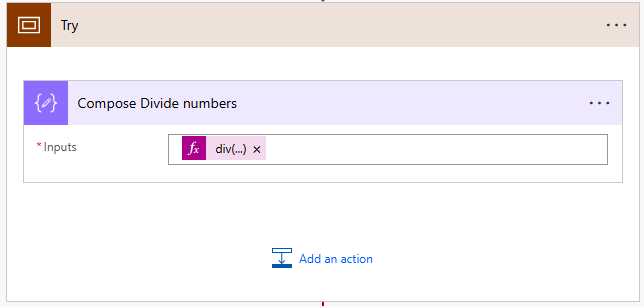
- Add a Scope action and rename it to "Try".
- For this example, we'll add a Compose action and then divide our two numbers.
div(triggerBody()['number'],triggerBody()['number_1'])
Catch the error
- Add another Scope action right after the previous Scope and call it "Catch".
- Click the ... in the Scope and select Configure Run After.
- Check "has failed" and "has timed out". This means the Catch Scope will only run if the previous Try Scope has failed or timed out.
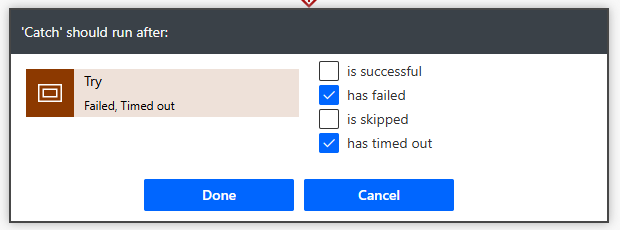
- You will see your connecting arrow turn red and have a little note next to it.
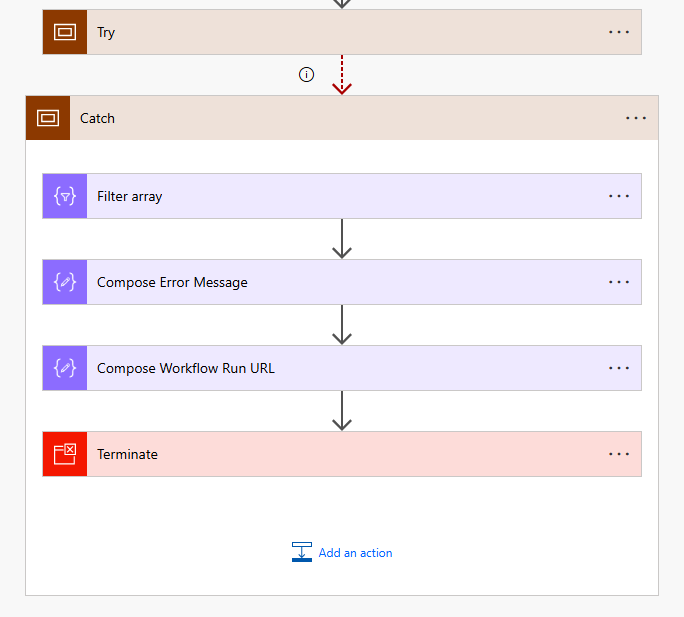
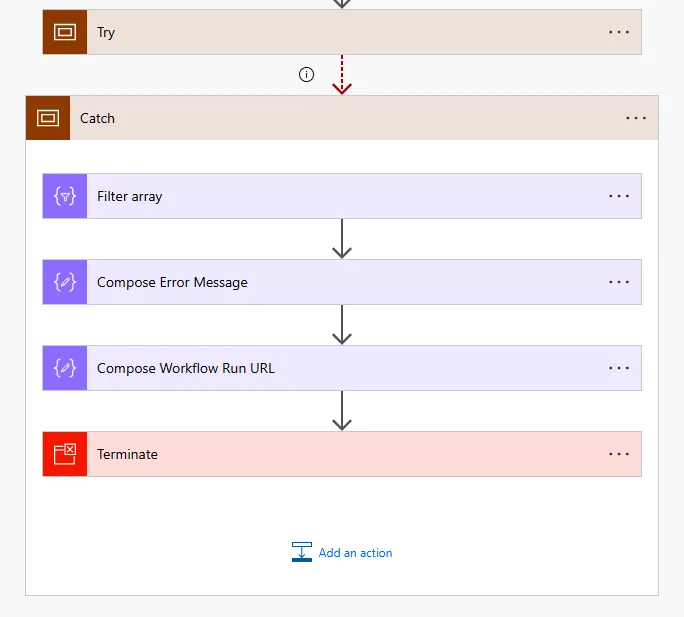
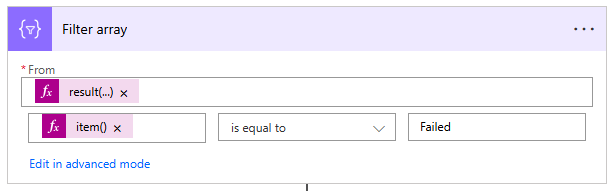
- Add a Filter Array action inside the Catch Scope. The error will be in an array, and we want to filter it to return only the items that failed.
- Set the From array to Filter to the following, where "Try" is the name of the scope defined above.
result('Try')
- Set the row expression to item()?['Status'] is equal to Failed.
item()?['Status']
- Add a Compose action to capture the error message. Rename it to Compose Error Message and set the Input to the following expression:
body('Filter_array')[0]['error']['message']

- If you want to capture the URL that links directly to the instance of the workflow that failed (very handy), you can concatenate a few workflow variables together in another Compose action with the following expression:
concat('https://make.powerautomate.com/', workflow()['tags']['environmentName'], '/flows/', workflow()['name'], '/runs/', workflow()['run']['name'])

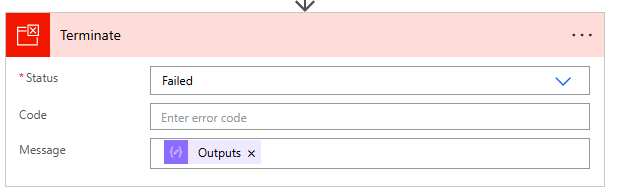
- Finally, it can be confusing if the workflow has errors but finishes successfully. By adding this Catch logic, we're catching the error, and technically, the workflow no longer fails. So, we can add a Terminate action here so that it shows as failed in the run history.
Test without an error
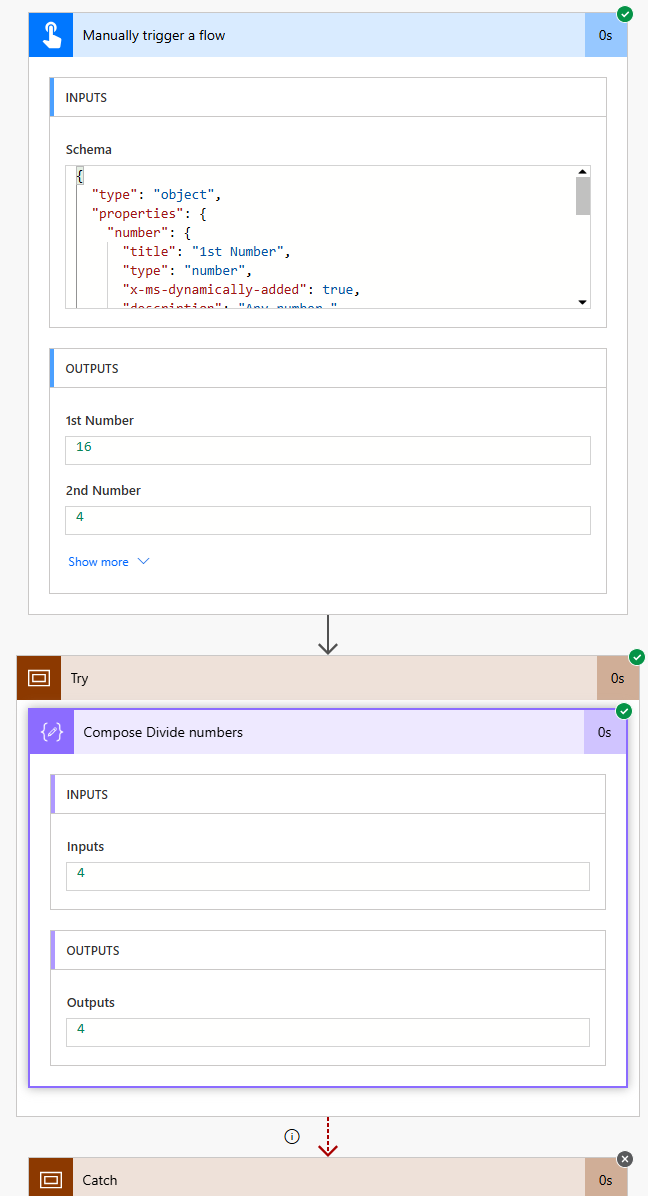
If you run your workflow and add two valid numbers, such as 16 and 4, it should run successfully with no errors. Notice that the Catch scope does not execute.
Test with an error
Now test dividing by zero. Your Try will fail, and your Catch will execute.
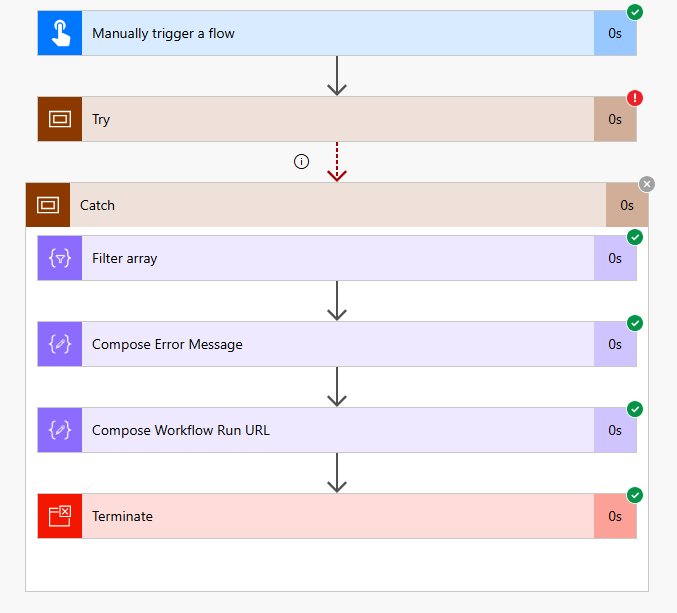
A screenshot of the entire workflow running with an error.
If you expand your two Compose actions, you should see the error message and the Workflow Run URL.
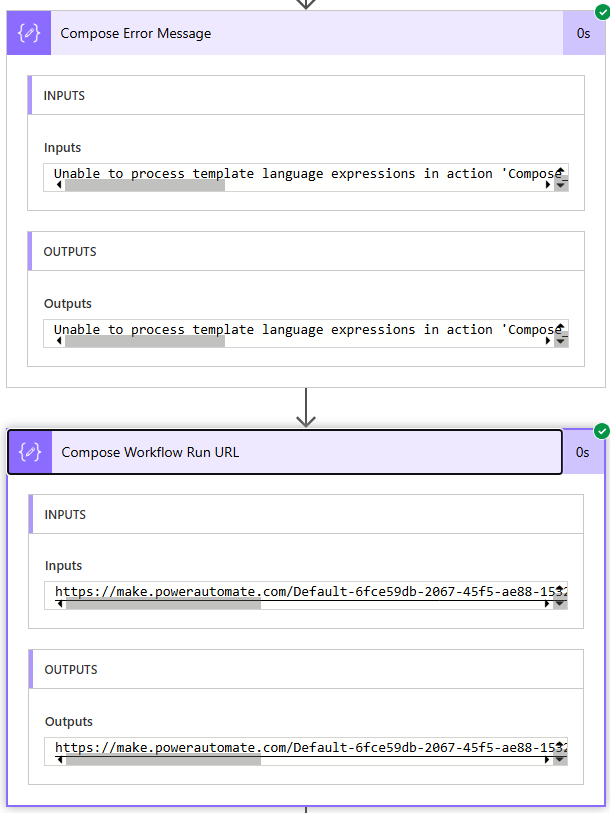
You can now do whatever you want with these values. Write them to a SharePoint list, a Dataverse table, or send an email!